
Overview
Most slicers let you insert a pause command at a specific layer height. When the printer reaches that layer it stops, you swap the filament to a new color, and then resume. This works on virtually any FDM printer with a single extruder.
- Slice your model so you can see the layer preview.
- Scroll to the layer where you want the color change.
- Right-click the layer slider and add a pause command.
- Re-slice, export, and print.
Step 1: Slice your model first
Before you can add a pause, you need to slice the model so the slicer generates the layer preview. Import your model and click Slice with your normal print settings.
Once slicing is complete, the layer preview will appear on the right side of the screen with a vertical slider that lets you scroll through each layer.
Step 2: Find the layer where you want the color change
Use the vertical slider on the right side of the layer preview to scroll through the layers. Drag the slider up or down until you reach the exact layer where you want the filament swap to happen.

Step 3: Add a pause at that layer
Right-click on the slider at your chosen layer height (or click the small "+" icon next to the layer bar). A menu will appear with options:
- Add Pause — inserts a pause command so the printer stops and waits for you to resume.
- Add Custom G-code — lets you type a specific command. Use
M600(filament change — parks head and waits),M601(pause and wait for user), orM0(unconditional stop) depending on your printer's firmware. Anycubic Kobra 3 and other Klipper printers: useM600— see the Kobra 3 / Klipper fix below.
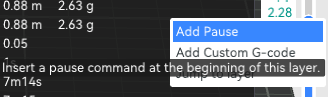
Select Add Pause for the simplest option. The slicer will mark that layer with a pause indicator on the slider.
M601 or M0. Check your printer's firmware documentation if you are unsure which command it supports.
Backup: full custom G-code for filament change
If the basic pause command doesn't work, select Add Custom G-code and paste the following. This triggers a filament change, reheats the nozzle, and purges the old color:
For Klipper printers (Anycubic Kobra 3, Voron, etc.)
M601             ; pause print (try M600 if M601 doesn't work on your printer)
M109 S210        ; reheat and wait for temp (CHANGE 210 to YOUR print temp)
G1 E40 F300      ; purge 40mm to flush old color
M601 is the officially documented pause command for the Kobra 3 series. It pauses the print, cools the nozzle to 140°C, and waits for you to swap filament and press Resume. If M601 doesn't work, try M600 instead. The M109 line ensures the nozzle reheats to full temperature before continuing. See the detailed Kobra 3 / Klipper section for more options if neither command works.
For Marlin printers (Ender, Prusa, most others)
G91              ; relative positioning
G1 Z10 F300      ; lift nozzle 10mm
G90              ; absolute positioning
G1 X10 Y10 F3000 ; move head to front-left corner
M104 S0          ; turn off hotend while you swap filament
M25              ; pause SD print - swap filament, then press Resume
M109 S210        ; reheat and wait for temp (CHANGE 210 to YOUR print temp)
G1 E40 F300 ; purge 40mm to flush old colorS210 to match the temperature you are printing at (e.g. S200 for PLA, S240 for PETG). Do not use M25 or M0 on Klipper-based printers (Anycubic Kobra 3, etc.) — they will not pause properly. Use M600 instead. See the Kobra 3 / Klipper fix below for more details.
Step 4: Re-slice and export
After adding the pause, click Slice again so the slicer regenerates the G-code with the pause command embedded at the correct layer. Then export the file as usual and send it to your printer.
During the print
When the printer reaches the pause layer it will stop and wait. At this point:
- Unload or pull out the current filament.
- Load the new color filament.
- Purge a small amount through the nozzle to clear the old color (some printers do this automatically on resume).
- Press Resume on the printer's screen or control interface.
The print will continue from where it stopped, now using the new filament color.
Troubleshooting
- Nozzle temperature drops to 0 after resume (Anycubic Kobra 3 & other Klipper printers): This is a common issue on printers running Klipper-based firmware, including the Anycubic Kobra 3 series. During a pause, the firmware sets the nozzle heater to 0°C as a safety measure — but the resume routine does not always restore it. The fix is to add
M109 S210(replace 210 with your print temperature) as custom G-code after your pause command. This forces the printer to reheat to the correct temperature before it continues printing. See the Anycubic Kobra / Klipper fix section below for a ready-to-use G-code block. - Printer ignores the pause: Your firmware may not support the default pause G-code. Try adding
M600,M601, orM0as custom G-code instead. - Printer moves to the side briefly then resumes without actually pausing: This means your pause command (
M25orM0) is not recognized by your printer's firmware. Klipper-based printers (Anycubic Kobra 3, Voron, etc.) do not supportM25orM0as pause commands. The printer will execute the positioning G-code (moving the head to the side) but skip right past the pause and continue printing. UseM600instead — this is the only command that reliably pauses and waits for you to swap filament on these printers. See the Kobra 3 / Klipper fix below. - Nozzle sticks to print during pause: Some slicers have an option to park the nozzle to the side during a pause. Check your slicer's pause settings or add a custom G-code to move the nozzle away (e.g.
G1 X0 Y0) before the pause command. - Layer adhesion is weak at the color change: Make sure you resume promptly so the previous layer does not cool too much. A heated bed helps maintain adhesion.
- Old color bleeds into new layers: Purge more filament before resuming. You can extrude 50–100mm manually to fully flush the old color from the hotend.
Fix for Anycubic Kobra 3 / Klipper-Based Printers
The Anycubic Kobra 3 (V1 and V2), Kobra S1, and other Klipper-based printers have widespread problems with filament change pausing. This is a well-known issue in the community. The Kobra 3 runs Klipper firmware, which does not understand standard Marlin pause commands — and even the officially supported commands may not work depending on your firmware version.
- Print head moves to the side for a few seconds, then just starts printing again — screen never shows "Paused"
- Nozzle temperature drops to 0°C after resume and the print fails
- M600 causes the printer to freeze completely
- Printer pauses but the head crashes into the print when resuming
The root cause: the slicer's Add Pause button and commands like M25 and M0 are Marlin commands that Klipper ignores. The Kobra 3 firmware adds support for M600 and M601, but the implementation varies by firmware version and can be buggy, especially on the V1. Below are multiple methods in order of reliability — if one doesn't work, try the next.
Step 0: Update your firmware first
Many pause issues were fixed in firmware updates. Before trying anything else, update your Kobra 3 to the latest firmware version:
- On your printer's touchscreen, go to System → About → Firmware Version to check your current version. If there is an upgrade arrow, an update is available.
- Update via the AnyCubic app (OTA) or download from the Anycubic firmware update guide.
- After updating, try your filament change again before moving to the methods below.
Method 1: Use M601 (recommended)
M601 is the officially documented pause command for the Kobra 3 series according to Anycubic's own wiki. It tells the firmware to pause the print at that layer. In your slicer, right-click the layer slider and select Add Custom G-code (not "Add Pause"). Enter:
M601             ; pause print - Anycubic official pause command
M109 S210        ; reheat to print temp after resume (CHANGE 210 to YOUR temp)
G1 E40 F300      ; purge 40mm to flush old color
When the printer reaches this layer, it should pause and cool the nozzle to 140°C (safety feature). The screen should show the print is paused. Swap your filament, then press Resume on the touchscreen. The M109 line reheats the nozzle to full temperature before continuing.
Method 2: Use M600 (filament change command)
If M601 doesn't work on your firmware, try M600 instead. This triggers a full filament change procedure — the printer parks the head and waits for you. Use Add Custom G-code and enter:
G1 Z{layer_z+10} F300  ; lift nozzle 10mm above print (prevents head crash on resume)
M600             ; filament change - printer parks and waits for you
M109 S210        ; reheat to print temp after resume (CHANGE 210 to YOUR temp)
G1 E40 F300 ; purge 40mm to flush old colorG1 Z lift before M600 prevents a known bug where the print head crashes into the part when resuming. If your slicer doesn't support the {layer_z+10} variable, replace it with a fixed height above your print (e.g. G1 Z50 F300 if your color change is below 40mm).
Note: On some Kobra 3 units, M600 can cause the printer to freeze — especially if you have an external filament sensor (like the ACE). If your printer locks up, power cycle it and use Method 1 or 3 instead.
Method 3: Manual pause from the touchscreen (most reliable fallback)
If no G-code command works on your Kobra 3, you can pause manually from the printer's touchscreen. Community reports confirm this method works reliably even when G-code commands don't.
- In your slicer, note the layer number where you want the color change (check the layer preview slider).
- Start the print and watch the layer count on the printer's touchscreen.
- When the printer reaches your target layer, press the Pause button on the touchscreen.
- The printer will park the head to the side and show "Paused" on screen.
- Pull out the old filament, load the new color, and purge manually using the Feed button on the touchscreen to push filament through until you see the new color.
- Press Resume to continue the print.
G4 S1 (1-second dwell) as custom G-code at the target layer — it won't pause the print, but it creates a tiny hesitation that you may notice if you're watching closely.
Method 4: Timed dwell (last resort)
If nothing else works and you can't watch the printer, you can use a timed pause that gives you a fixed window to swap filament. The printer will resume automatically when the timer runs out. Use Add Custom G-code and enter:
G91              ; relative positioning
G1 Z10 F300      ; lift nozzle 10mm
G90              ; absolute positioning
G1 X10 Y10 F3000 ; move head to front-left corner
G4 S300          ; dwell for 300 seconds (5 minutes) - CHANGE to however long you need
M109 S210        ; reheat to print temp (CHANGE 210 to YOUR temp)
G1 E40 F300      ; purge 40mm to flush old color
G4 S300 pauses for exactly 300 seconds (5 minutes). Change the number to however long you need — S120 for 2 minutes, S600 for 10 minutes. The print will resume automatically when the timer ends, whether you're ready or not. Set it longer than you think you need.
Why "Add Pause" doesn't work on the Kobra 3
When you click Add Pause in AnyCubic Slicer Next or OrcaSlicer, the slicer inserts whatever is configured in your printer profile's pause G-code field. On many Kobra 3 profiles this field is either empty or set to a Marlin command like M25 that Klipper ignores. The result: the printer briefly hiccups (the head may move) but never actually enters a paused state, and it resumes printing on its own after a few seconds.
Always use Add Custom G-code and type the command yourself.
Permanent fix in slicer settings
Once you find a command that works on your printer (M601 or M600), set it in your slicer's printer profile so the Add Pause button works correctly every time:
- In AnyCubic Slicer Next or OrcaSlicer, go to Printer Settings → Machine G-code.
- Find the Change filament G-code field (you may need to enable Advanced settings to see it).
- Enter the command that worked for you, followed by a temperature restore:
M601M109 S{nozzle_temperature}
The {nozzle_temperature} variable is automatically replaced with your current print temperature, so you don't need to hardcode a number.