The problem
Word does not syntax-highlight code. If you paste raw code from your editor, you get plain black text in Calibri with no indentation, no color, and no visual structure. Screenshots are not selectable or searchable. IDE copy-paste sometimes works but brings unwanted background colors, mismatched fonts, or broken spacing.
The method on this page solves all of that: highlight in the browser, copy as rich text, and paste directly into Word with colors and formatting preserved.
Step 1: Highlight and copy your code
Paste your source code into the left panel of the tool above. Select the correct language from the Lang dropdown so keywords, strings, comments, and types are colored properly.
Choose a theme. Word Friendly is designed for printing and light document backgrounds. The darker themes work well if your document has a dark code-block style.
Toggle Lines on or off depending on whether you want line numbers in the output.
Click the Copy Rich Text for Word button. The tool copies formatted HTML to your clipboard using Consolas as the font face, which Word recognizes as a monospace font.
Tip: The copy uses <font> tags with explicit color and face attributes. This is intentional because Word's rich text paste handles inline font tags more reliably than CSS-styled spans.
Step 2: Paste the highlighted code into Word
Click where you want the code in your Word document, then press Ctrl+Shift+V. This pastes the rich text with syntax highlighting, colors, and Consolas font preserved.
If Ctrl+Shift+V doesn't work, right-click where you want to paste and select Keep Source Formatting from the paste options:
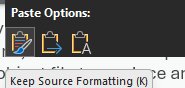
Tip: Keep Source Formatting ensures Word preserves the colors, font, and styling from the syntax highlighter rather than converting it to your document's default style.
Optional: Place code inside a table for a contained look
For a cleaner, more structured appearance, you can paste the code inside a single-cell table. This is optional but gives you:
- Containment — the code block stays in its own box and does not merge with surrounding paragraph text.
- Background shading — you can shade the cell to create a code-block look.
- Border control — add a thin border or remove it entirely for a cleaner look.
- Page-break protection — table properties let you keep rows together across pages.
- Consistent width — the table constrains line width so long lines wrap predictably.
How to insert the table
- In Word, go to Insert → Table.
- Select a 1×1 grid (1 column, 1 row).
- Click inside the cell and paste with Ctrl+Shift+V (or right-click → Keep Source Formatting).
Styling the table cell
After pasting, right-click the table and choose Table Properties to fine-tune the appearance.
- Cell shading: Right-click the cell → Table Properties → Borders and Shading → Shading. Use a light gray like
#F5F5F5 for the Word Friendly theme, or #1E1E1E if you used a dark theme.
- Borders: In the same dialog, set a thin (
0.5pt) solid border in a neutral gray, or remove borders entirely.
- Cell margins: Under Table Properties → Cell → Options, add
0.1" to 0.15" padding on all sides.
Tip: Once you have styled one code table, select it, go to Insert → Quick Parts → Save Selection to Quick Part Gallery. Name it something like "Code Block" for easy reuse in future documents.
FAQ
Why a table instead of a text box?
Text boxes in Word float and cause layout headaches, especially with multi-page code. A table cell is inline with the document flow and handles page breaks properly.
Can I use this for Google Docs?
Yes. The rich text copy works in Google Docs too. Instead of a Word table, insert a 1×1 table in Docs via Insert → Table, then paste into the cell.
Why not just screenshot my IDE?
Screenshots are not searchable, not selectable, not accessible, and they do not scale. If someone needs to copy a command from your document, they cannot do it from a screenshot. Rich text code blocks are better in every way except for one: they do not capture your cursor position or IDE decorations.
What languages are supported?
The tool currently supports C/C++, JavaScript, Python, Java, and Plain Text. The tokenizer handles keywords, types, strings, numbers, comments, preprocessor directives, decorators, and template literals.
Does the tool send my code anywhere?
No. Everything runs in your browser. No code is transmitted to any server. The copy operation uses the browser clipboard API locally.
Summary
Paste code into the highlighter, pick a language and theme, and copy the rich text. In Word, paste with Ctrl+Shift+V or right-click and select Keep Source Formatting. For a contained code-block look, optionally place the code inside a 1×1 table and style it with shading and borders. The result is clean, colored, searchable code in your Word document with no screenshots and no plugins.